Guidelines for Partners
Configuration Packages in Business Central help you manage and move data efficiently between companies or environments. They let you export data, update it using Excel, and then import it back – without having to edit each record manually. This saves time, improves accuracy, and keeps data consistent.
Once you have set up a company in Business Central according to your requirements, you can create a configuration package that includes the relevant setup data. This package can then be reused to configure new companies in the same way. You can also create custom import packages for data that is frequently updated or involves a high volume of transactions.
To further support users, you can include one or more questionnaires in the configuration package using “Configuration Questionnaire” page. These questionnaires help customers understand the available setup options and guide them through the configuration process.
1. Step-by-Step Guide on how to use Configuration Packages in Business Central
1. Create a New Package
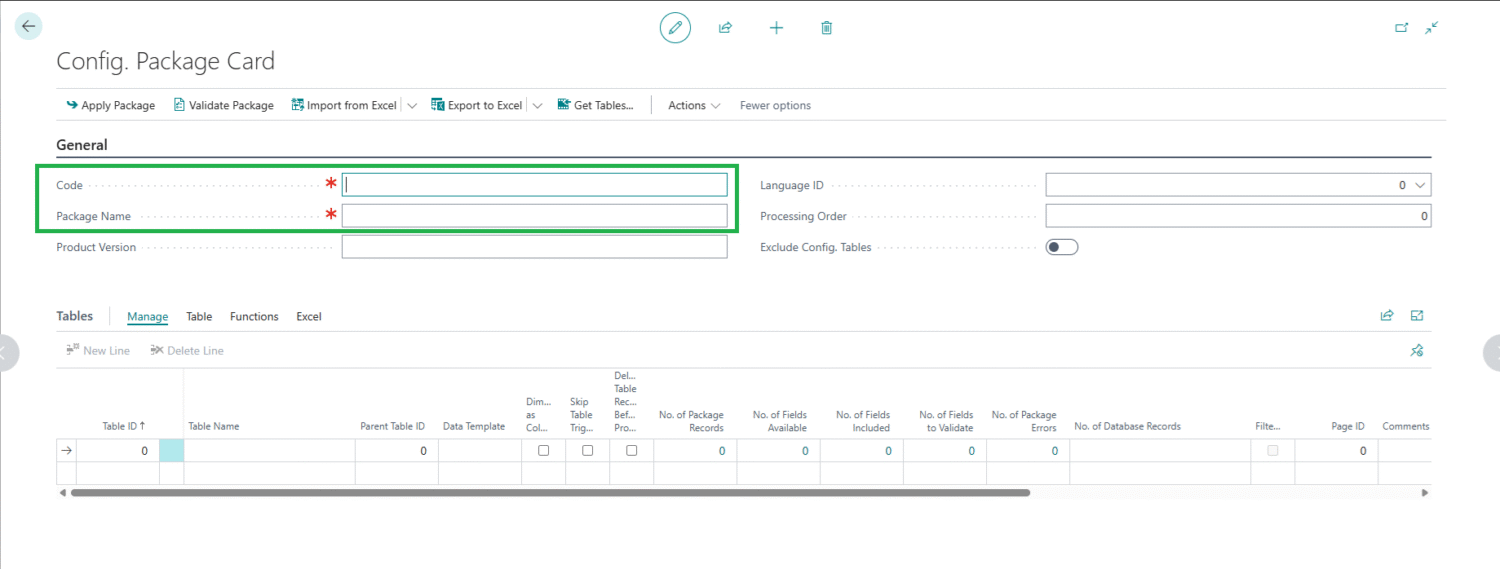
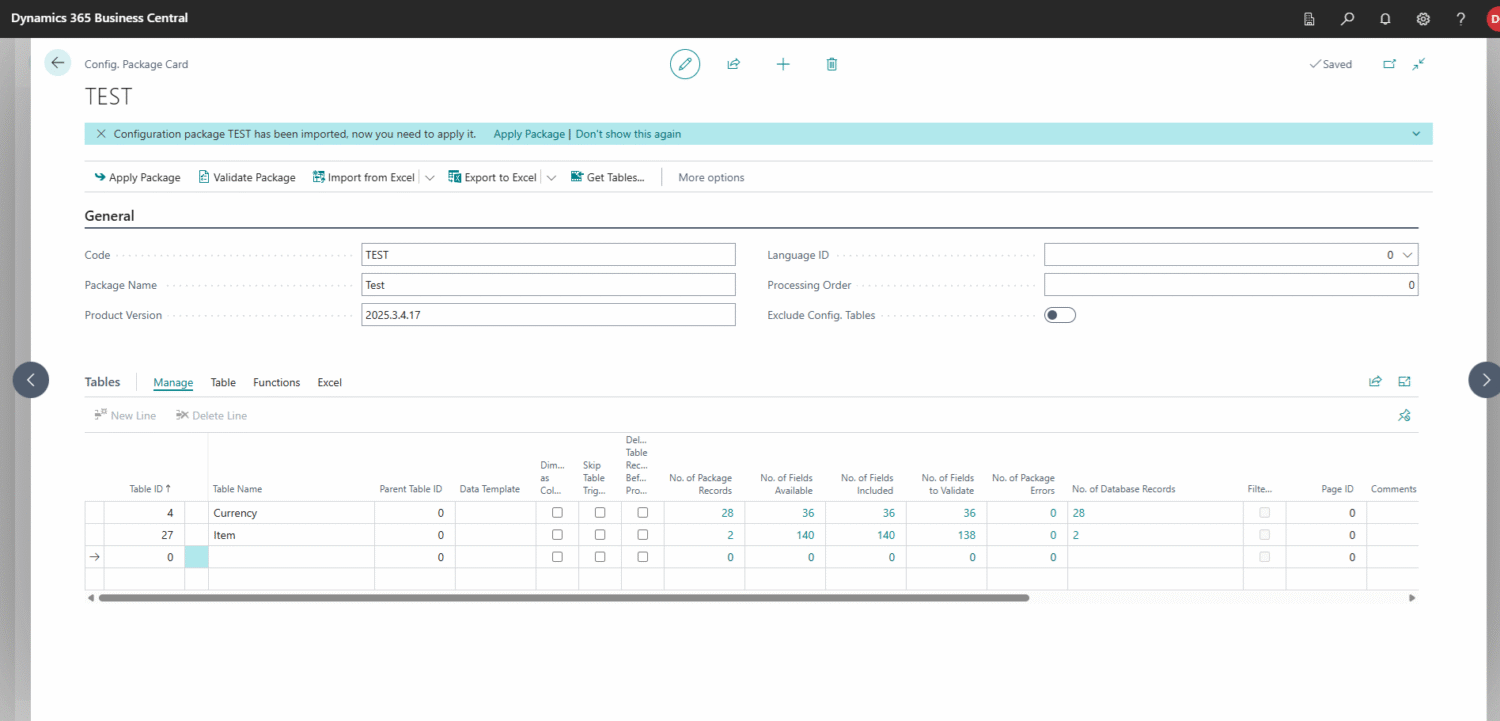
Go to the “Configuration Packages” page and press “New”. Fill a “Code” and a “Package Name” fields that describe the purpose of the package.
2. Select Tables and Fields
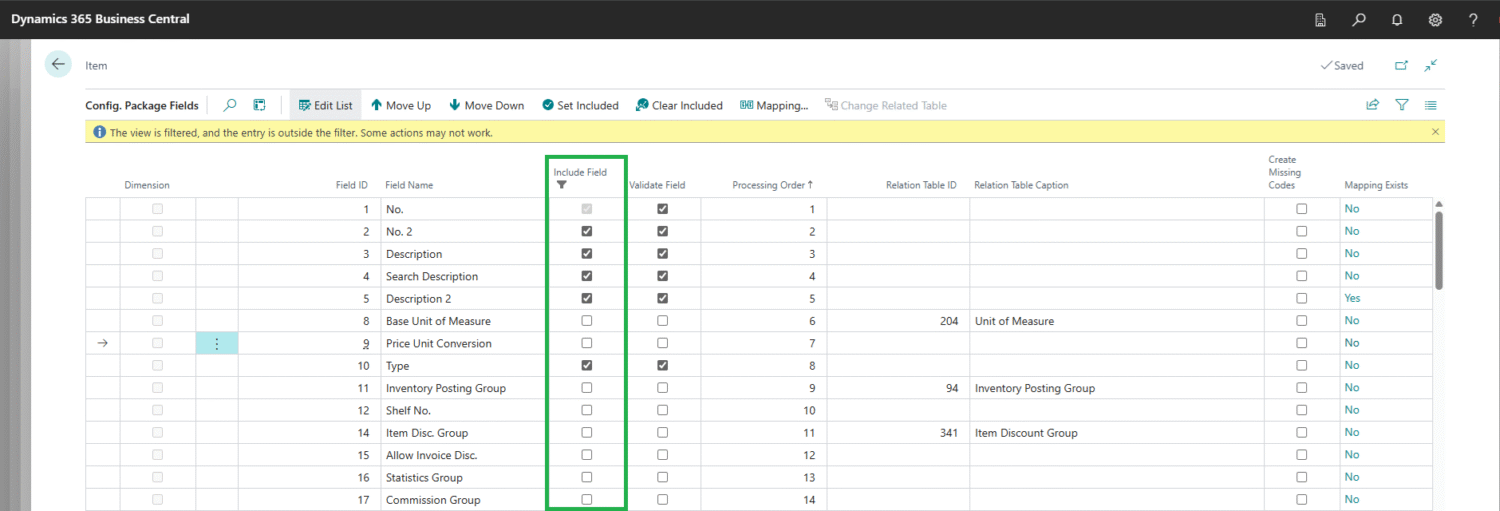
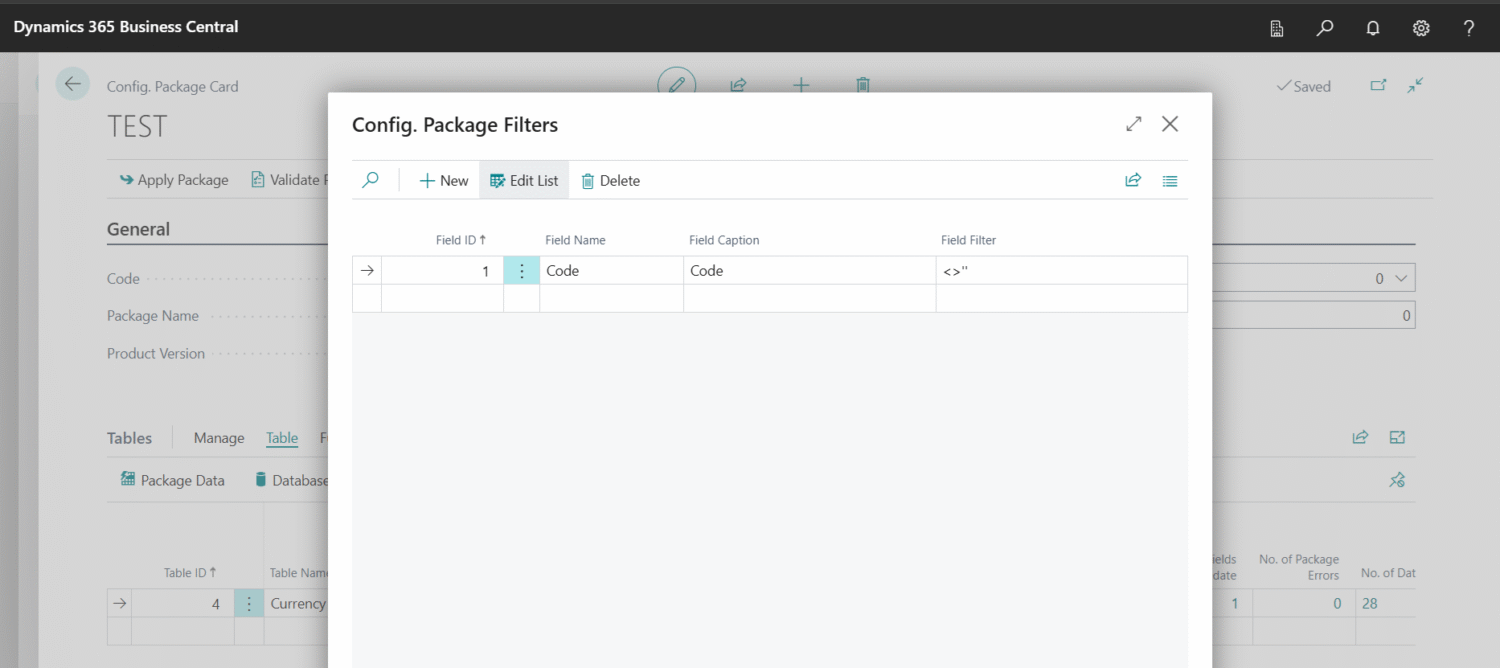
In the Tables fast tab, add a new line and select table for which data you want to migrate or update. Click on “No. of Fields Included” flowfield or FastTab “Tables” action “Fields” and exclude all fields except the primary key fields and the fields you need. Use “Get Related Tables” action to add all related tables to the selected main table. Filter the dataset using “Filters” action.
Note: Related tables are not added by the “Get Related Tables” action if the relationship is conditional or if the related table is filtered. These tables must be added manually.
3. Export and update data
Choose “Export to Excel” action. In the exported Excel file update the data and save it.
You should remove any empty rows from the exported excel file to save time when uploading it back.
4. Import and Apply
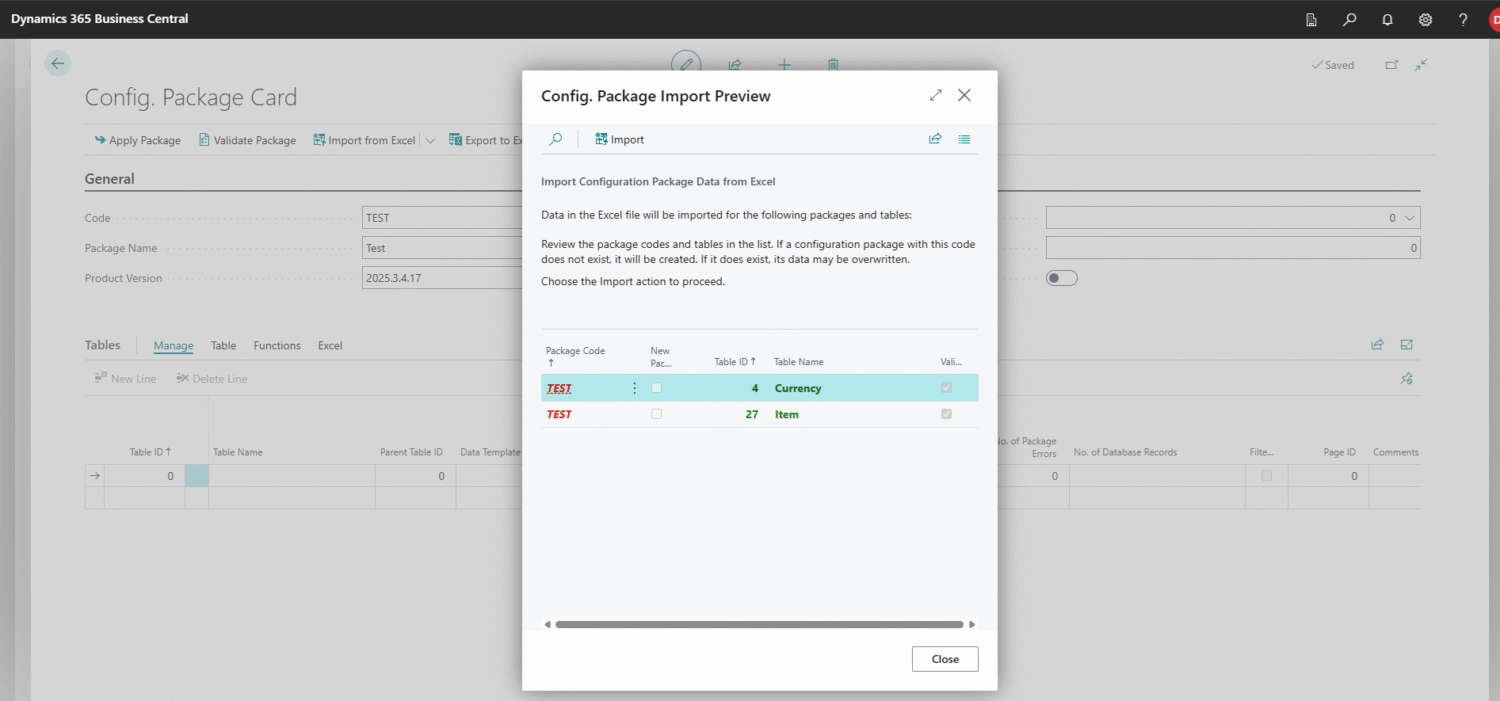
Return to Business Central, select Import from Excel, and once the import is complete, press “Apply Package” to update the data.
Tip: When moving table data from earlier NAV versions to Business Central, you may run into issues importing Excel files into the newer version. To avoid this, export the same Configuration Package from both the older and newer versions.
In each exported Excel file, remove any empty rows and sort the primary key fields alphabetically (A–Z). Make sure the sorting is identical in both files. Next, copy the data from the Excel file exported from the older version and replace the data in the Excel file exported from the newer version. Save the file, then import the Excel file from the newer version into Business Central.

2. Things to consider when using Configuration Packages in Business Central:
- You can’t import data to tables that contain posted entries, like the customer, vendor, and item ledger entries tables. Also, some tables don’t support direct read, insert, or modify permissions. You can’t include such tables in configuration packages.
- Users must have direct effective permissions for the tables being imported or exported; indirect permissions are not sufficient. The user exporting the configuration package must have “Direct Read” permissions, while the user importing it must have “Direct Insert” and “Direct Modify” permissions.
- Use caution when tables or fields differ only by special characters (such as %, &, <, >, or ,). The XML processor removes unsupported characters, which can cause duplicate names and lead to errors during configuration package export or import.
- Besides Excel files, configuration packages can also be imported and exported by using “Export Package” and “Import Package” actions, which generate and import a compressed .rapidstart file. To prevent configuration questionnaires, templates, and worksheet tables from being included, select the “Exclude Config. Tables” check box. If not selected, these tables are automatically added when the package is exported.

3. Conclusion
In conclusion, Configuration Packages in Business Central simplify data updates across companies by allowing you to export, edit, and re-import data efficiently. This approach minimizes manual effort, reduces errors, and ensures data remains accurate and consistent. As a result, data management across environments becomes faster and more reliable.