Guidelines for Partners
JSON in Business Central is one of the most commonly used approaches for integrations, REST APIs, imports, exports, and data migrations. Understanding how JsonObject, JsonArray, JsonToken, and JsonValue work in AL helps developers build reliable and reusable data exchange solutions across modern Business Central environments.
1. What are JSONs and Why It Matters in Business Central
JSON (JavaScript Object Notation) is the standard format for data exchange in modern business systems. It is simple, lightweight, and requires no special software to work with, making it the preferred format for integrations, simple data migrations, and system-to-system communication.
1.1. When to Use JSONs in Business Central
Any time you need to move structured data between Business Central and another system, JSON is likely involved. Understanding how to read, create, and work with JSON makes you more competent for simple data exchange tasks. Some scenarios where JSON is useful and practical in Business Central:
- Data imports from external sources. Customer data, product information, or transaction details in a file, when gotten from external sources, is often in JSON format.
- Data exports to third-party systems. When sending Business Central data to logistics companies, payment processors, or analytics tools, JSON is the format those platforms expect. Anywhere, where the structured data needs to leave Business Central cleanly: Power Automate workflows, exports to Excel or Power BI, and other custom applications.
- REST API integrations. When connecting Business Central to cloud services, payment gateways, or other modern APIs, the system sends and receives JSON-formatted requests and responses.
- Data migrations. When upgrading Business Central versions or consolidating multiple instances, JSON files can be used to transfer data between systems. However, if the record count, which needs to be moved, is above one thousand – it is recommended to use another way to migrate, because JSONs take a lot of time.
1.2. Understanding JSON Data Types in AL
When you work with JSON in Business Central, you will encounter four main data types in the AL language. These types represent different structures within JSON and understanding them makes it much easier to read, create, and manipulate the data.
- JsonObject
A JsonObject represents a collection of labeled data – what you might think of as a single record. Each piece of information has a name (field) and a value. If you imagine a customer record with a name, city, and payment status, that would be a JsonObject.
In practical terms, whenever you work with a single entity from JSON, you are dealing with a JsonObject. When you receive customer data from a partner, that customer information is wrapped in a JsonObject. When you export a single sales order from Business Central, the order details are organized as a JsonObject. This is the most common type you will use because most business data represent individual records.
- JsonArray
A JsonArray is a collection of multiple items, all organized in a list. Think of it as multiple JsonObjects grouped together. If a JsonObject represents one customer, a JsonArray represents a list of ten customers. If a JsonObject is one sales order, a JsonArray might be several orders sent in a single file.
When you receive bulk data from a partner, like a file containing hundreds of invoices or a list of products, that data is organized as a JsonArray. When you export multiple records from Business Central, they are packaged as a JsonArray. This type is essential whenever you are working with more than one record at a time. Arrays maintain order, so the first item is always the first, the second is always the second, and so on.
- JsonToken
A JsonToken is a container that can hold anything. It is a flexible type in AL. A JsonToken could be a JsonObject, a JsonArray, a simple value like a number or text, or even null (empty). Think of it as a wrapper that says “I don’t know exactly what’s inside yet, but it could be multiple things.”
In practice, you would use JsonToken when you are reading JSON data and you are not entirely sure what structure you will find. Sometimes a field might contain a single value, sometimes it might contain multiple values. JsonToken gives you flexibility to manage both situations without knowing in advance which one you are dealing with.
Note: Starting from Business Central 2025 Wave 1 (BC26), Microsoft introduced new methods that allow reading JSON data directly without always going through a JsonToken. For example, you can now use GetText() directly on a JsonObject to retrieve a value. If you are working on an older version, the JsonToken approach remains the standard way to extract values.
- JsonValue
A JsonValue is a single piece of information—a number, text, true or false, or null. It is the simplest type. If a JsonObject is like a container holding multiple labeled items, a JsonValue is what is actually inside that container. The customer name “John’s Manufacturing” is a JsonValue. The amount “2500.75” is a JsonValue. The status “true” is a JsonValue.
When you are extracting specific pieces of data from JSON, like pulling out an invoice number or a payment status, you are working with JsonValues. These are the actual data points that matter to your business.
How These Types Work Together
When you import or export a JSON file containing customer data, the structure typically looks like this:
- The entire file is a JsonArray containing multiple customers.
- Each customer in that array is a JsonObject with fields like name, city, and amount.
- Each of those fields contains a JsonValue—the actual customer name, the actual city, the actual amount.
Understanding this hierarchy is the foundation for working comfortably with JSON in Business Central. When something goes wrong with integration, understanding these types helps you diagnose whether the problem is with the overall structure (array vs object issue) or with individual values. Here is a simple Json structure to understand how it looks:
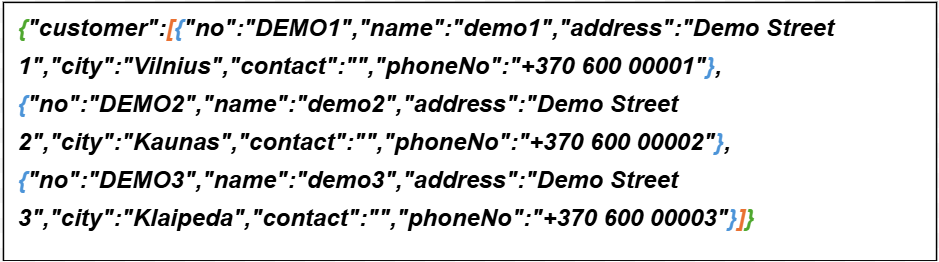
Blue brackets separate the different JsonObjects. JsonValue is the value of the field – “demo1”, “Demo Street 1”, Kaunas” and other – separated with commas. The whole JsonArray is in orange brackets, and the root JsonObject is in green brackets.
An example with code for understanding this structure is shown in the Practical examples section.
2. Practical Examples
Business Central already has two built-in tools for working with JSON: Codeunit 5459 “JSON Management” and Table 1236 “JSON Buffer”. Both exist in the base application and require no additional setup. However, both were built on top of DotNet objects, which means that parts of their functionality are marked as OnPrem scope and simply do not work in a modern Business Central cloud environment. JSON Buffer also has a known performance problem — it becomes noticeably slow even with medium-sized datasets and scales poorly as record counts grow. For these reasons, neither is recommended for new development, and the examples in this article are built using native AL JSON types instead, which work without restrictions in both cloud and on-premise environments.
Example 1: Understanding JSON Types
This simple and hardcoded example builds a JSON structure from scratch, reads values back from it, and shows how JsonObject, JsonArray, JsonToken, and JsonValue each play their part.
namespace DefaultPublisher.DemoJsons.

using System.Text.Json.

codeunit 50000 "JSON Example"
{
  trigger OnRun()
  begin
    RunJsonExample();
  end;

  local procedure RunJsonExample()
  var
    JsonHelper: Codeunit Json;
    Customer: JsonObject;
    Address: JsonObject;
    Orders: JsonArray;
    Order: JsonObject;
    Token: JsonToken;
    JsonText: Text;
    OrderJsonText: Text;
    OrderNo: Text;
    Amount: Decimal;
    Street: Text;
    City: Text;
    Country: Text;
    i: Integer;
    CustomerNameLbl: Label 'Customer name: %1', Comment = '%1 = Customer name';
    CustomerAddressLbl: Label 'Address: %1, %2, %3', Comment = '%1 = Street, %2 = City, %3 = Country';
    OrderInfoLbl: Label 'Order %1: Amount = %2', Comment = '%1 = Order no., %2 = Amount';
  begin
    Customer.Add('no', 'C00010');
    Customer.Add('name', 'Demo Customer');
    Customer.Add('balance', 1250.75);
    Customer.Add('blocked', false);

    Address.Add('street', 'Main Street 1');
    Address.Add('city', 'Vilnius');
    Address.Add('country', 'LT');
    Customer.Add('address', Address);

    Clear(Order);
    Order.Add('orderNo', 'SO-001');
    Order.Add('amount', 500.00);
    Orders.Add(Order);

    Clear(Order);
    Order.Add('orderNo', 'SO-002');
    Order.Add('amount', 750.75);
    Orders.Add(Order);

    Customer.Add('orders', Orders);

    Customer.WriteTo(JsonText);

    Customer.Get('name', Token);
    Message(CustomerNameLbl, Token.AsValue().AsText());

    Customer.Get('address', Token);
    Token.AsObject().WriteTo(OrderJsonText);
    JsonHelper.InitializeObject(OrderJsonText);
    JsonHelper.GetStringPropertyValueByName('street', Street);
    JsonHelper.GetStringPropertyValueByName('city', City);
    JsonHelper.GetStringPropertyValueByName('country', Country);
    Message(CustomerAddressLbl, Street, City, Country);

    for i := 0 to Orders.Count() - 1 do begin
      Orders.Get(i, Token);
      Token.AsObject().WriteTo(OrderJsonText);
      JsonHelper.InitializeObject(OrderJsonText);
      JsonHelper.GetStringPropertyValueByName('orderNo', OrderNo);
      JsonHelper.GetDecimalPropertyValueFromJObjectByName('amount', Amount);
      Message(OrderInfoLbl, OrderNo, Amount);
    end;
  end;
}
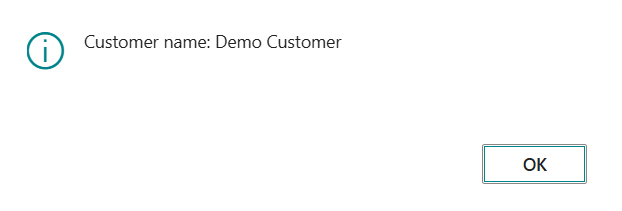
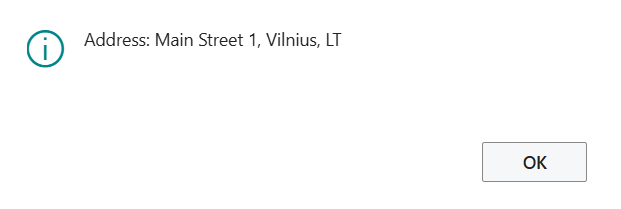
Simple top-level fields like the customer name are read directly using native AL JsonToken, while nested objects like the address and individual orders are read using the built-in Json codeunit, which lets you retrieve values by field name without manually navigating the token hierarchy. Each step produces a message on screen, making it easy to follow how data flows from a structured JSON object back into individual usable values:


Example 2: Import and Export
This codeunit is extremely universal – instead of being written for a specific table like Customer or Vendor, it works with any Business Central table through RecordRef. You pass in any record reference, and the codeunit manages the rest automatically.
namespace DefaultPublisher.DemoJsons;

using System.IO;
using System.Utilities;

codeunit 50001 "Json Record Mgt"
{
  procedure Export(var RecRef: RecordRef) JsonText: Text
  var
    FieldRef: FieldRef;
    Items: JsonArray;
    Item, Root : JsonObject;
    i: Integer;
  begin
    if RecRef.FindSet() then
      repeat
        Clear(Item);
        for i := 1 to RecRef.FieldCount do begin
          FieldRef := RecRef.FieldIndex(i);
          if IsExportable(FieldRef) then
            Item.Add(JsonName(FieldRef.Name), Format(FieldRef.Value,
0, 9));
        end;
        Items.Add(Item);
      until RecRef.Next() = 0;
    Root.Add(JsonName(RecRef.Name), Items);
    Root.WriteTo(JsonText);
  end;

  procedure Import(var RecRef: RecordRef; JsonText: Text) Count: Integer
  var
    TempBuffer, TempItem : Record "JSON Buffer" temporary;
  begin
    TempBuffer.ReadFromText(JsonText);
    if not TempBuffer.FindArray(TempItem, JsonName(RecRef.Name)) then
      exit;
    repeat
      if Upsert(RecRef, TempItem) then
        Count += 1;
    until TempItem.Next() = 0;
  end;

  procedure Download(JsonText: Text; FileName: Text)
  var
    TempBlob: Codeunit "Temp Blob";
    OutStr: OutStream;
    InStr: InStream;
  begin
    TempBlob.CreateOutStream(OutStr, TextEncoding::UTF8);
    OutStr.WriteText(JsonText);
    TempBlob.CreateInStream(InStr, TextEncoding::UTF8);
    DownloadFromStream(InStr, '', '', '', FileName);
  end;

  procedure Upload() JsonText: Text
  var
    InStr: InStream;
    FileName: Text;
    SelectFileLbl: Label 'Select a JSON file';
  begin
    if UploadIntoStream(SelectFileLbl, '', 'JSON Files (*.json)|*.json', FileName, InStr) then
      InStr.ReadText(JsonText);
  end;

  local procedure Upsert(var RecRef: RecordRef; var TempItem: Record "JSON Buffer" temporary): Boolean
  var
    KeyRef: KeyRef;
    FieldRef: FieldRef;
    Value: Text;
    i: Integer;
  begin
    KeyRef := RecRef.KeyIndex(1);
    for i := 1 to KeyRef.FieldCount do begin
      FieldRef := KeyRef.FieldIndex(i);
      if not TempItem.GetPropertyValue(Value, JsonName(FieldRef.Name)) then
        exit(false);
      AssignField(FieldRef, Value);
      FieldRef.SetRange(FieldRef.Value);
    end;
    if not RecRef.FindFirst() then
      RecRef.Insert(true);
    for i := 1 to RecRef.FieldCount do begin
    FieldRef := RecRef.FieldIndex(i);
    if IsExportable(FieldRef) and TempItem.GetPropertyValue(Value, JsonName(FieldRef.Name)) then
        AssignField(FieldRef, Value);
    end;
    RecRef.Modify(true);
    exit(true);
  end;

  local procedure AssignField(FieldRef: FieldRef; Value: Text)
  var
    IntVal: Integer;
    DecVal: Decimal;
    BoolVal: Boolean;
    DateVal: Date;
    DateTimeVal: DateTime;
  begin
    case FieldRef.Type of
      FieldType::Text, FieldType::Code:
        FieldRef.Value(CopyStr(Value, 1, FieldRef.Length));
      FieldType::Integer, FieldType::Option:
        if Evaluate(IntVal, Value, 9) then
          FieldRef.Value(IntVal);
      FieldType::Decimal:
        if Evaluate(DecVal, Value, 9) then
          FieldRef.Value(DecVal);
      FieldType::Boolean:
        if Evaluate(BoolVal, Value, 9) then
          FieldRef.Value(BoolVal);
      FieldType::Date:
        if (Value <> '') and Evaluate(DateVal, Value, 9) then
          FieldRef.Value(DateVal);
      FieldType::DateTime:
        if (Value <> '') and Evaluate(DateTimeVal, Value, 9) then
          FieldRef.Value(DateTimeVal);
    end;
  end;

  local procedure IsExportable(FieldRef: FieldRef): Boolean
  begin
    exit((FieldRef.Class = FieldClass::Normal) and
        (FieldRef.Type in [FieldType::Integer, FieldType::Decimal, FieldType::Boolean,
                           FieldType::Date, FieldType::DateTime,
                           FieldType::Text, FieldType::Code, FieldType::Option]));
  end;

  local procedure JsonName(Source: Text) Result: Text
  var
    Words: List of [Text];
    Word: Text;
    i: Integer;
  begin
    Words := DelChr(Source, '=', '.').Split(' ', '_', '-', '/', '\');
    for i := 1 to Words.Count do begin
      Word := Words.Get(i);
      if Word <> '' then
        if Result = '' then
            Result := LowerCase(Word)
        else
            Result += UpperCase(CopyStr(Word, 1, 1)) + CopyStr(Word, 2);
    end;
  end;
}
Export procedure:
loops through every field in the record and builds a JSON structure where each field name is automatically converted into clean camelCase format. That is how a BC field called “Post Code” becomes postCode in the JSON, and “Country/Region Code” becomes countryRegionCode, without any manual mapping. The result is written out as a JSON text and is downloaded as a file using the Download procedure.
The illustration below is hard to understand, but there are three chosen customers data written in JSON format:
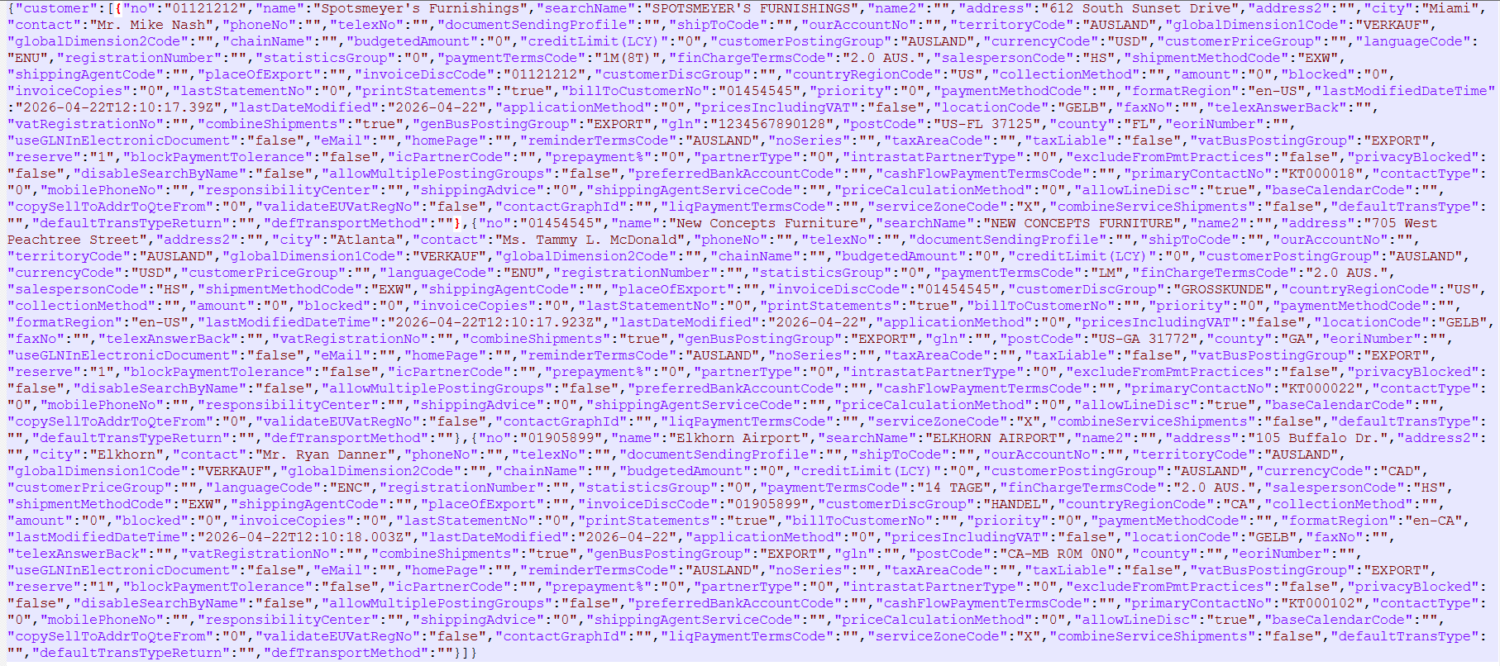

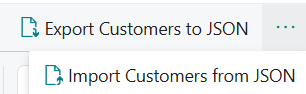
The data was exported using an action button which was added to the Customer List page extension. It exports not all, but only selected records:
action(ExportCustomersJson)
{
  ApplicationArea = All;
  Caption = 'Export Customers to JSON';
  ToolTip = 'Exports the selected customers to a JSON file and downloads it.';
  Image = Export;
  trigger OnAction()
  var
    SelectedCustomer: Record Customer;
    JsonRecordMgt: Codeunit "Json Record Mgt";
    RecRef: RecordRef;
    FileNameTxt: Label 'Customers.json', Locked = true;
    NoSelectionErr: Label 'No customers found to export.';
  begin
    CurrPage.SetSelectionFilter(SelectedCustomer);
    if SelectedCustomer.IsEmpty() then
      Error(NoSelectionErr);
    RecRef.GetTable(SelectedCustomer);
    JsonRecordMgt.Download(JsonRecordMgt.Export(RecRef), FileNameTxt);
  end;
}
Import and Export buttons in Business Central:
 y
y
The same button with no additional code could be added to another page extension. For example, the action is added in Approval Entries page extension, and the only difference is the var SelectedX: Record X(also red in the code):
action(ExportApprovalsJson)
{
  ApplicationArea = All;
  Caption = 'Export to JSON';
  ToolTip = 'Exports the selected entries to a JSON file and downloads it.';
  Image = Export;
  trigger OnAction()
  var
    SelectedEntry: Record "Posted Approval Entry";
    JsonRecordMgt: Codeunit "Json Record Mgt";
    RecRef: RecordRef;
    DefaultFileNameTxt: Label 'ApprovalEntries.json', Locked = true;
    NoSelectionErr: Label 'No approval entries found to export.';
  begin
    CurrPage.SetSelectionFilter(SelectedEntry);
    if SelectedEntry.IsEmpty() then
      Error(NoSelectionErr);
    RecRef.GetTable(SelectedEntry);
    JsonRecordMgt.Download(JsonRecordMgt.Export(RecRef), DefaultFileNameTxt);
  end;
}
There are other minor differences, such as ToolTip or labels, but that can be made generic and universal for every action.
Import procedure:
The procedure reads the JSON file, finds the correct data array by matching the table name, and loops through each record. For every item it finds, it applies an upsert logic – if a record with that primary key already exists in Business Central, it updates it; if it does not, it creates a new one. Field values are assigned back with proper type conversion, so text goes to text fields, decimals to decimal fields, dates to date fields, and so on.
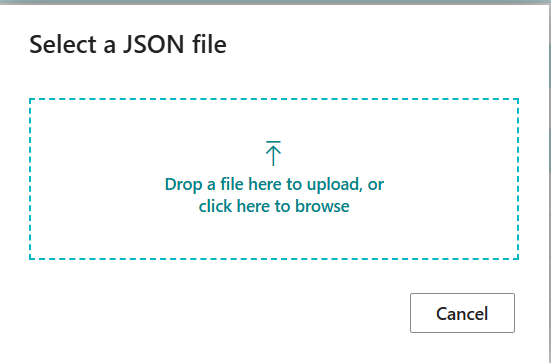
The action, which imports the file is similarly universal – it prompts the upload window and the only thing to change between pages is the Record, same as the export actions:
action(ImportCustomersJson)
{
  ApplicationArea = All;
  Caption = 'Import Customers from JSON';
  ToolTip = 'Imports customers from a JSON file (creates new or updates existing by No.).';
  Image = Import;
  trigger OnAction()
  var
    Customer: Record Customer;
    JsonRecordMgt: Codeunit "Json Record Mgt";
    RecRef: RecordRef;
    JsonText: Text;
    ImportedCount: Integer;
    ImportedMsg: Label '%1 customer(s) imported / updated.', Comment = '%1 = number of customers';
  begin
    JsonText := JsonRecordMgt.Upload();
    if JsonText = '' then
      exit;
    RecRef.GetTable(Customer);
    ImportedCount := JsonRecordMgt.Import(RecRef, JsonText);
    Message(ImportedMsg, ImportedCount);
  end;
}
The Sample JSON File:
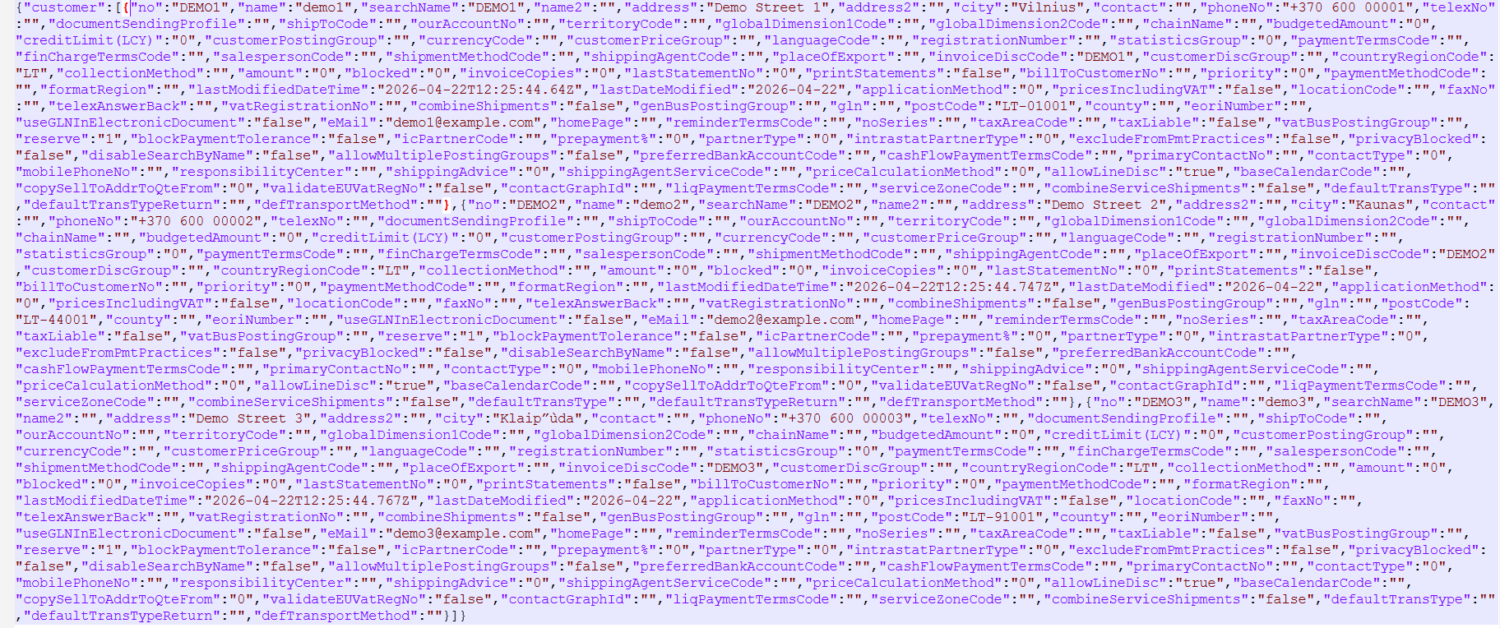
The hard to read sample file contains three demo customers and reflects the structure the import code expects – a root object with a “customers” array, three objects (three demo customers) with all fields as values.
After a successful import, a message displays how many customers were imported or updated, giving the user immediate confirmation that the process completed and how many records were affected.


Summary
JSON is a straightforward and widely supported format that fits naturally into Business Central’s integration and data exchange workflows. Understanding JsonObject, JsonArray, JsonToken, and JsonValue types gives you the foundation to read, build, and troubleshoot any JSON structure you encounter. The examples in this article show that working with JSON in AL does not require complex setup, since the procedures can be reused to handle imports, exports, and data migrations across any table. The universal codeunit approach in Example 2 is particularly worth adapting, as the same logic works for customers, vendors, items, or any other record with minimal changes. Once the pattern is familiar, JSON stops being difficult and becomes a practical tool for anyone for maintaining or extending a Business Central solution.