Guidelines for Partners
Displaying barcodes in Business Central report layouts using dynamically generated images can be complex and difficult to maintain. Starting from Business Central 18, a simpler and more reliable alternative is available – barcode fonts.
The recommended approach is to use IDAutomation fonts, as they are preinstalled in the SaaS environment. This article explains how to display barcodes using IDAutomation fonts in both OnPrem and SaaS environments.
1. Barcodes in Business Central: Value encoding
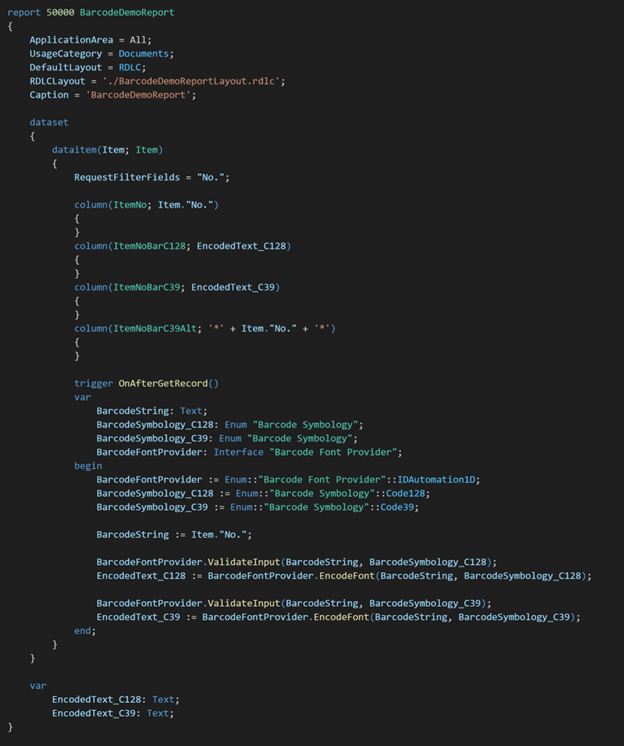
First step is to encode the value for the desired barcode type and add the encoded value to reports dataset, so it can be displayed in the report layout. In this demonstration the Item.”No.” field is encoded for Code128 and Code39 barcodes.
Image bellow shows the complete report used for this demonstration.
1.1. Best practice encoding (recommended)
The recommended approach is to use the BarcodeString, BarcodeSymbology, BarcodeFontProvider and EncodedText structure in the OnAfterGetRecord trigger. The full declaration and encoding are shown in the image above.
This ensures proper encoding for different barcode types and guarantees compatibility with barcode font requirements.
Alternative encoding for simple barcode types
For simple barcode types such as Code39, encoding can also be done manually by adding start and stop characters:
- ‘*’ + YourValue + ‘*’
- ‘(‘ + YourValue + ‘)’
In this demonstration:
- ItemNoBarC128 – Encoded Code128 value using the recommended structure
- ItemNoBarC39 – Encoded Code39 value using the recommended structure
- ItemNoBarC39Alt – Alternative Code39 encoding using * symbols
2. Barcodes in Business Central: Report layout barcode fonts
Once the values are properly encoded and added to the dataset, the next step is to configure the report layout.
To display a barcode:
- Add a textbox to the report layout.
- Set the textbox value to the encoded dataset field.
- Change the font of the textbox to the desired barcode font.
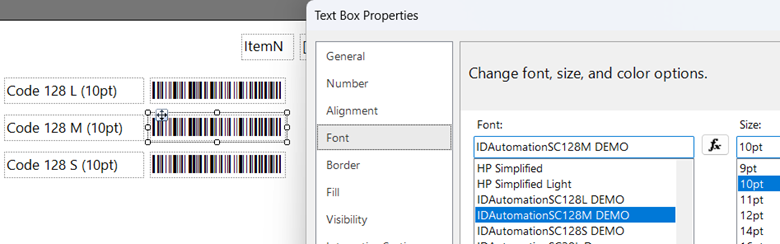
For RDLC reports, this can be done using Microsoft Report Builder or by directly modifying the .rdlc file, examples are shown below.
Microsoft Report Builder:
.rdlc file:
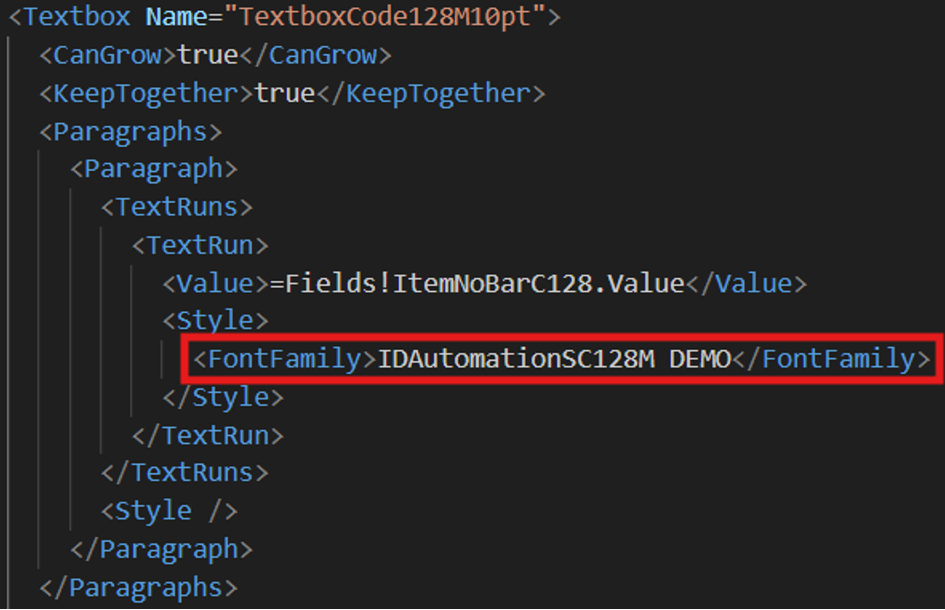
In this demonstration IDAutomation C128 Demo and IDAutomation C39 Demo fonts are used. In an OnPrem environment, you may use any installed barcode fonts.
Important!
The SaaS environment includes pre-installed IDAutomation fonts. Therefore, if SaaS is the target – IDAutomation fonts are required to use, even if they are not installed in OnPrem server.
For this demonstration to work in SaaS environment all barcode fonts need to change. Example: IDAutomationSC128M DEMO -> IDAutomationC128M
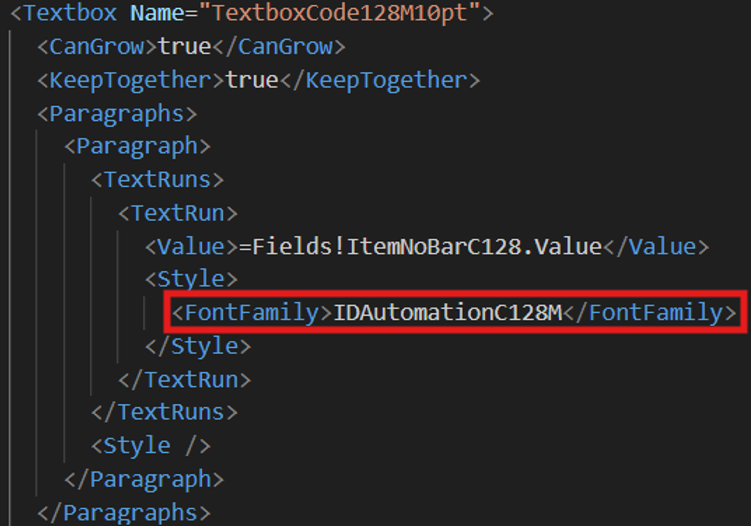
All of the pre-installed fonts in SaaS environment can be found here: Available fonts – Business Central | Microsoft Learn.
3. Result
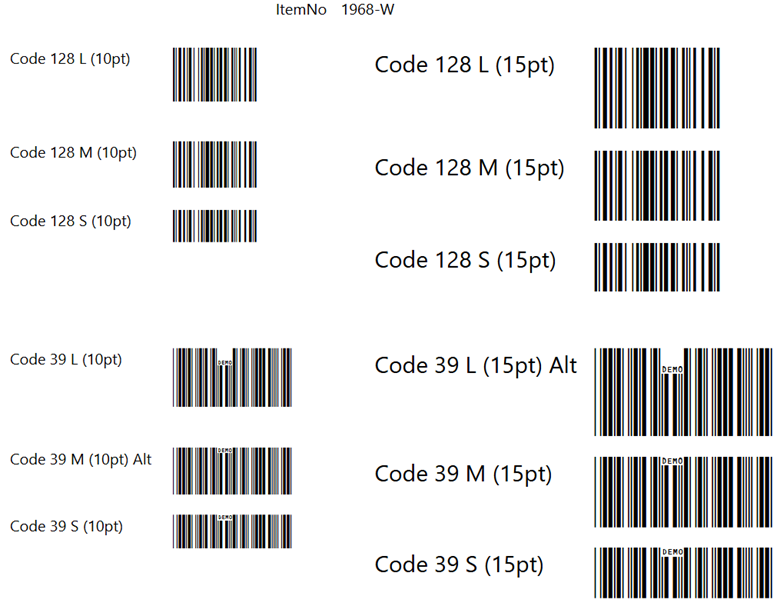
After encoding the values and configuring the layout font correctly, the barcodes will be displayed when previewing or printing the report.
Note
Using barcode fonts there are two ways to change the barcode size.
- Changing the font variant.
The IDAutomation fonts have size letters from XXS to XXL. Changing this letter will affect only the height of the barcode. This demonstration shows S, M and L sizes. - Changing the font size.
Regardless of the font used you can change the font size. Changing the font size will affect width and height of the barcode. This demonstration shows 10pt and 15pt font sizes.
3.1. Missing fonts
If the required barcode font is not installed in the environment, the report will display the encoded value as plain text instead of rendering a barcode. For example, if targeting SaaS, but testing on an OnPrem environment without IDAutomation fonts installed, the barcode will not render. However, it will render correctly in SaaS environment.
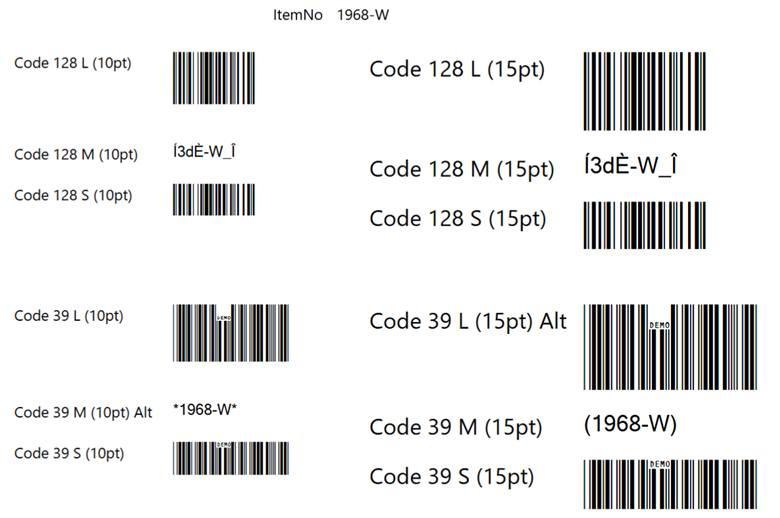
In this demonstration the M size fonts were changed to the SaaS variant, but the non-demo version of IDAutomation fonts are not installed in this OnPrem environment.
Conclusion
Using barcode fonts provides a clean, efficient, and maintainable alternative to dynamically generated barcode images in Business Central reports. By properly encoding values in the dataset and applying the correct barcode font in the report layout, barcodes can be displayed consistently in both OnPrem and SaaS environments. When targeting SaaS environment, it is essential to use the preinstalled IDAutomation fonts to ensure compatibility.
Overall, barcode fonts simplify implementation and ensure consistent results across deployment environments.
More information can be found here: Adding barcodes to reports – Business Central | Microsoft Learn.